Using the poweautomate we can use the BC OAuth2.0 and use that token for futher use in the samel powerautomate flow. in the below example I am creating a Incoming document by getting the email attachment, I am not going through the full powerautomate instead I will show you how you can use the OAuth2.0, generate the Token and use that token as Bearer authentication.
<strong>Post Method</strong> https://login.microsoftonline.com/{TenantID}/oauth2/v2.0/token
<strong>Body (Plain Text)</strong>
grant_type=client_credentials
&username={username}
&client_id={Client ID}
&scope=https://api.businesscentral.dynamics.com/.default
&client_secret={Client_Secret_value}
<strong>&username={username} - must be as a User in Business Central</strong>
<strong>&client_id={Client ID} - you can get it when you do the App registration in Azure Portal</strong>
<strong>&client_secret={Client_Secret_value} -you can get it when you do the App registration in Azure Portal</strong>
We will use about Token generator in Power Automate.
Initialize a variable.
<img class="wp-image-428" src="https://www.navwithnav.com/wp-content/uploads/2022/11/Snag_bff195a-300x160.png" alt="PowerAutomate" width="660" height="352" />
Now to generate the token, we will add a action of Http type.
<img class="alignleft wp-image-429" src="https://www.navwithnav.com/wp-content/uploads/2022/11/Snag_c016416-300x235.png" alt="" width="751" height="588" />
Now we will parse that Http request to get the Generated token by using of Action Data Operation.
<img class="alignleft wp-image-430" src="https://www.navwithnav.com/wp-content/uploads/2022/11/Snag_c0307e2-300x176.png" alt="" width="668" height="392" />
You can use the Generate from sample button, and paste the whole response you get when you run the post request to generate the token.
<strong>for Example.</strong>
{
"token_type": "Bearer",
"expires_in": 3599,
"ext_expires_in": 3599,
"access_token": "eyJ0eXAiOiJKV1QiLCJhbGciOiJSUzI1NiIsIng1dCI6IjJaUXBKM1VwYmpBWVhZR2FYRUpsOGxWMFRPSSIsImtpZCI6IjJaUXBKM1VwYmpBWVhZR2FYRUpsOGxWMFRPSSJ9.eyJhdWQiOiJodHRwczovL2FwaS5idXNpbmVzc2NlbnRyYWwuZHluYW1pY3MuY29tIiwo0ynS0gzjUoFJRwDJAH8mcpykbp-mje73UI7ui6Aiwl3h8-kfeco81zyWz3nZgQYH01rgnmzg4eSmvo1qylhL_sjH5gR4EAcl_5nvIBWyg9gd9OwA2KIIOtALSN4NYq_q0oelluFMbnvCJ-xWNZSMeKzZtMVItnVx8AWUz5ZA8ZgnSbauwnuukOhHOuVMg5igOcvVm2IXMLif7fqPG0Qakg93bYw"
}
Now we will set the variable's value which we had initialize in the beginning of the generated token.
<img class="alignleft wp-image-431" src="https://www.navwithnav.com/wp-content/uploads/2022/11/Snag_c052285-300x91.png" alt="" width="616" height="187" />
Now in the final setup, you can use that variable in your actual Post or Get http request to run with Bearer authorization.
<img class="alignleft wp-image-432" src="https://www.navwithnav.com/wp-content/uploads/2022/11/Snag_c06ceed-300x218.png" alt="" width="621" height="451" />
<em><strong>Most important step:</strong></em>
When you are using <strong>grant_type=client_credentials </strong>make sure you add that same user in Azure Active directory in Business central and assign the relevant permission.
Thanks.
Back to Series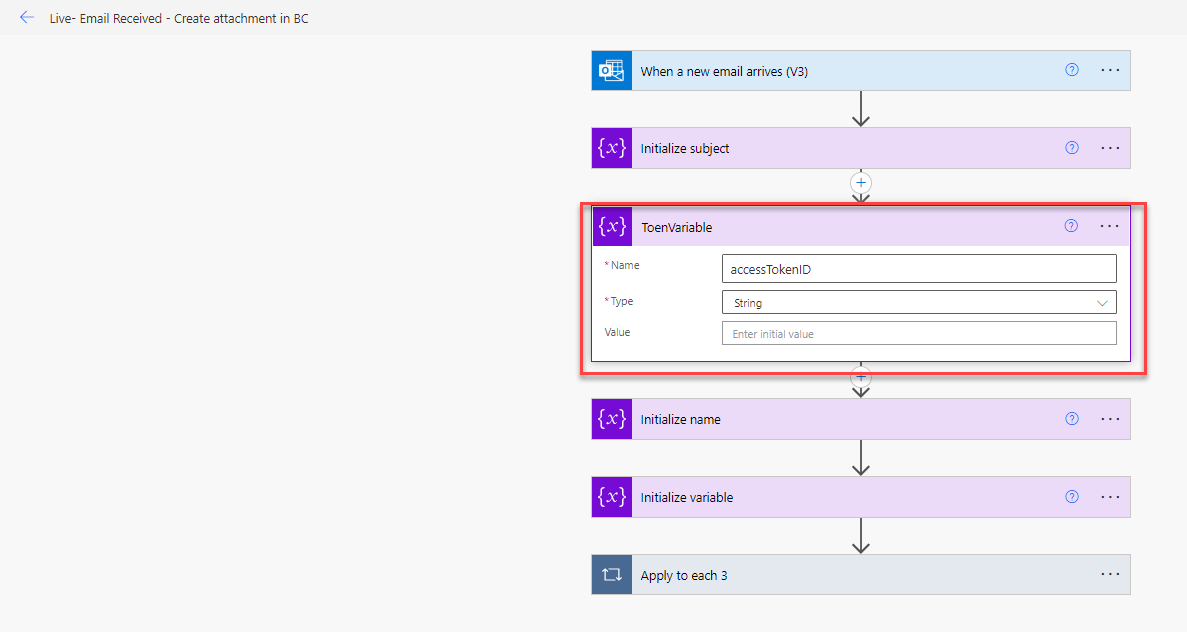
Azure
Use of Business Central oAuth2.0 in Powerautomate
Using the poweautomate we can use the BC OAuth2.0 and use that token for futher use in the samel powerautomate flow. in the below example I am creating a Incoming document by getting the email attachm...
NitinNovember 10, 2022 2 min read
Business CentralOAuthAPIAuthentication
Share this Article
0
0
Discussion (0)
No comments yet. Be the first to share your thoughts!
Newsletter
Stay updated with the latest Business Central development tips.

Nitin Verma
Solution Architect
Extensive experience specializing in Microsoft Dynamics NAV, Business Central, Power Platform, and ERP Architecture.
Read full bioSearch Articles
Monthly Archive
Loading...